> For the complete documentation index, see [llms.txt](https://docs.buzzy.buzz/llms.txt). Markdown versions of documentation pages are available by appending `.md` to page URLs; this page is available as [Markdown](https://docs.buzzy.buzz/the-building-blocks/datatables-fields-and-data/private-data.md).

# Private Data

Private Data lets app builders mark fields that contain personal, sensitive, regulated, or confidential information. Buzzy then applies server-side output shaping so the value is masked, hidden, encrypted, or audited according to the field configuration.

Use Private Data when a field should be treated differently from normal operational data.

## When to Use Private Data

Use Private Data for fields such as:

* names, email addresses, phone numbers, and addresses
* patient, employee, customer, or student identifiers
* health, financial, government, legal, or employment information
* confidential notes or internal assessments
* private images or file attachments

Do not use Private Data for fields that must be searched, sorted, or reported in raw form. Keep safe operational metadata in separate non-private fields.

## Deployment Considerations

Private Data controls how field values are shaped, encrypted, revealed, and audited by the Buzzy server. For compliance-sensitive apps, also consider where the Buzzy server and storage run.

Buzzy supports [single-tenant Deployments](/working-with-buzzy/buzzy-deployment-and-app-stores/create-and-manage-deployments.md) with your own deployment URL, database cluster, storage, and service endpoints in an available region. For organizations that need deeper infrastructure control, [Enterprise deployment](/advanced-deployment-settings/installation/deployment/introduction-to-deployment.md) can run Buzzy on your own cloud or on-premise infrastructure.

See the [Buzzy pricing page](https://www.buzzy.buzz/pricing#deployment) for current deployment plan options. Deployment model, region, contracts, backup policy, and operational controls are part of the overall compliance design.

## Classifications

| Classification             | Behavior                                                                                         |
| -------------------------- | ------------------------------------------------------------------------------------------------ |
| **Not Private Data**       | The field is returned normally, subject to row and field access.                                 |
| **Basic Private Data**     | The server masks or redacts the value before normal output.                                      |
| **Sensitive Private Data** | The value is hidden by default. Authorized users can reveal it, and reveal attempts are audited. |

Sensitive Private Data is encrypted at rest. Basic Private Data is intended for values that should be minimized in normal output but may not require the stronger hidden-by-default reveal workflow.

## Configure a Private Data Field

1. Open the app in Buzzy Workspace.
2. Go to **Data**.
3. Open **Data Model** or **Fields**.
4. Select the datatable.
5. Open the field.
6. Set **Private Data** to **Basic Private Data** or **Sensitive Private Data**.
7. Configure **Field view** to control who can see the field after they can see the row.
8. Configure **Field edit** to control who can change the field.
9. For Sensitive Private Data, add a purpose that explains why the data is collected or used.
10. Save the data model.

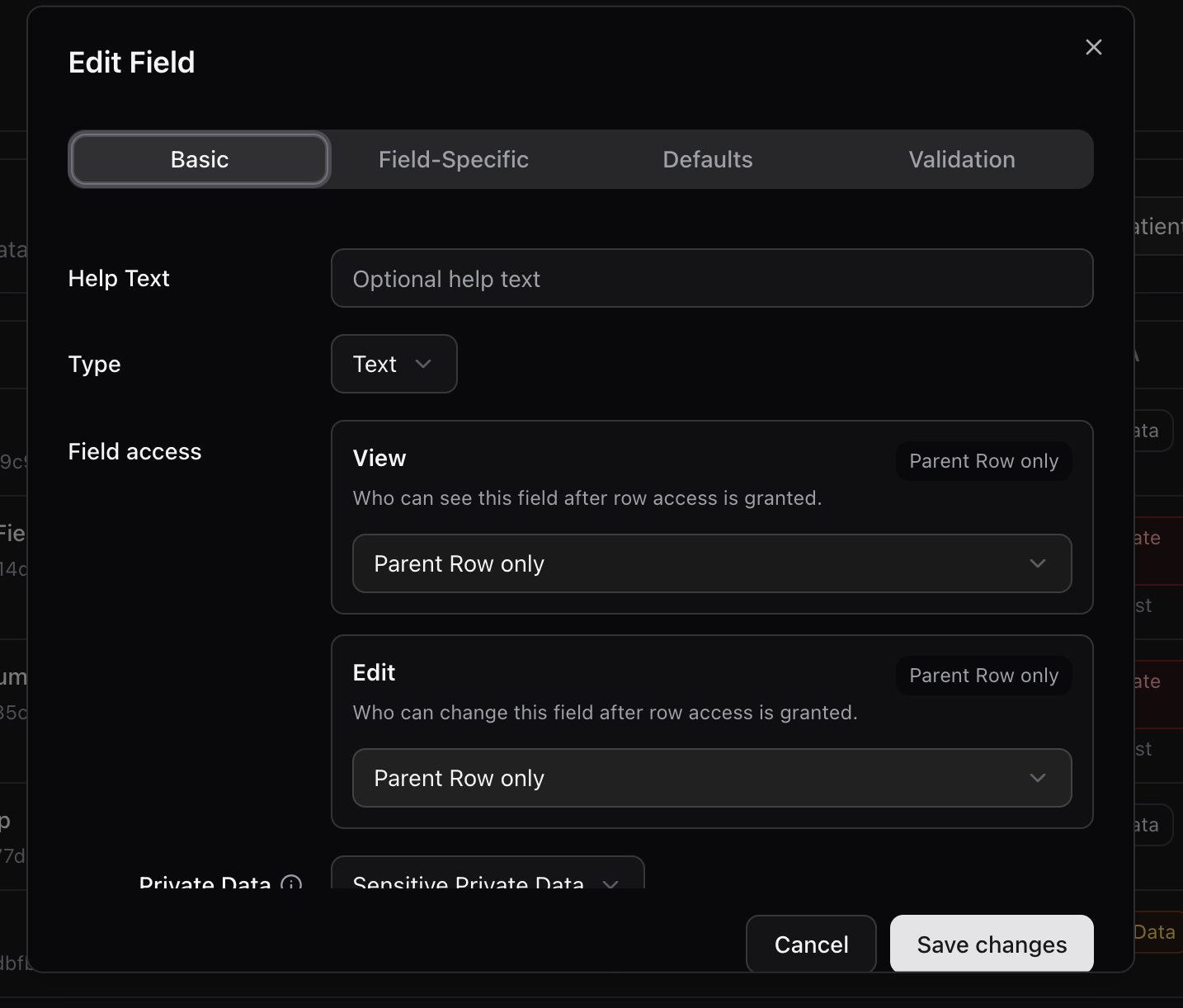
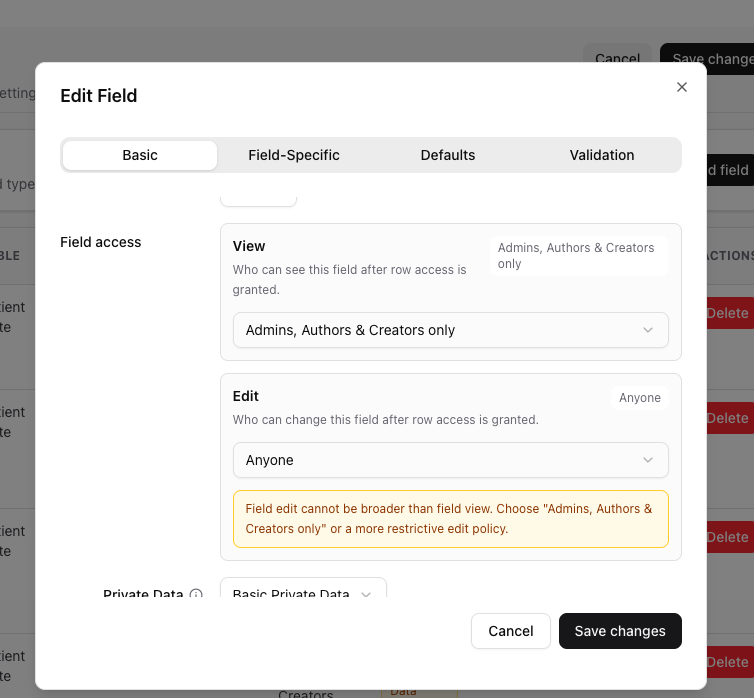
Field edit cannot be broader than Field view. For example, if Field view is "Admins, Authors & Creators only", Field edit cannot be "Anyone".

## Review Fields from the Fields Tab

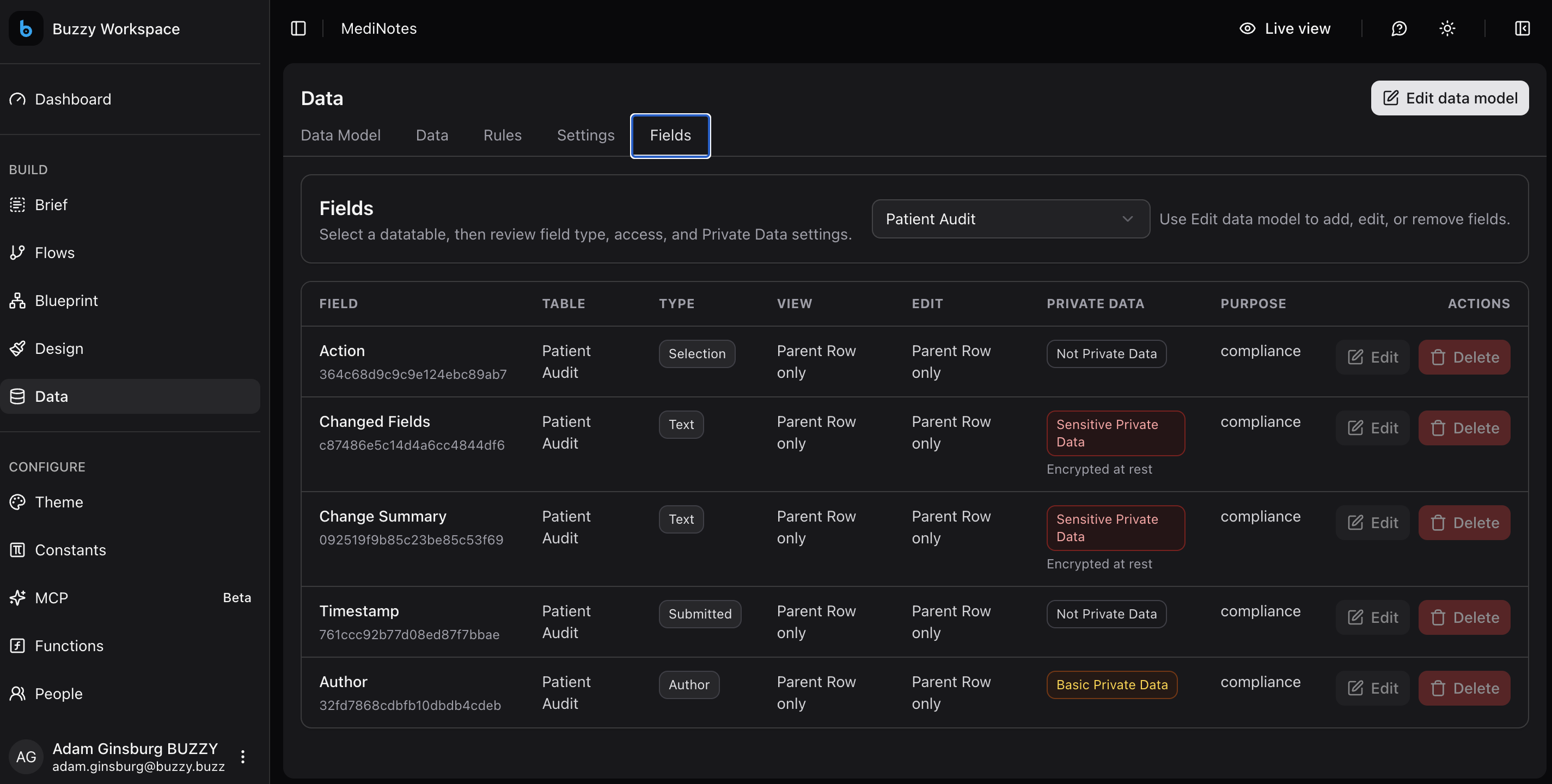
The **Fields** tab gives builders a table view of field security across the selected datatable. It is useful when you want to review Private Data configuration without opening every table card in the Data Model diagram.

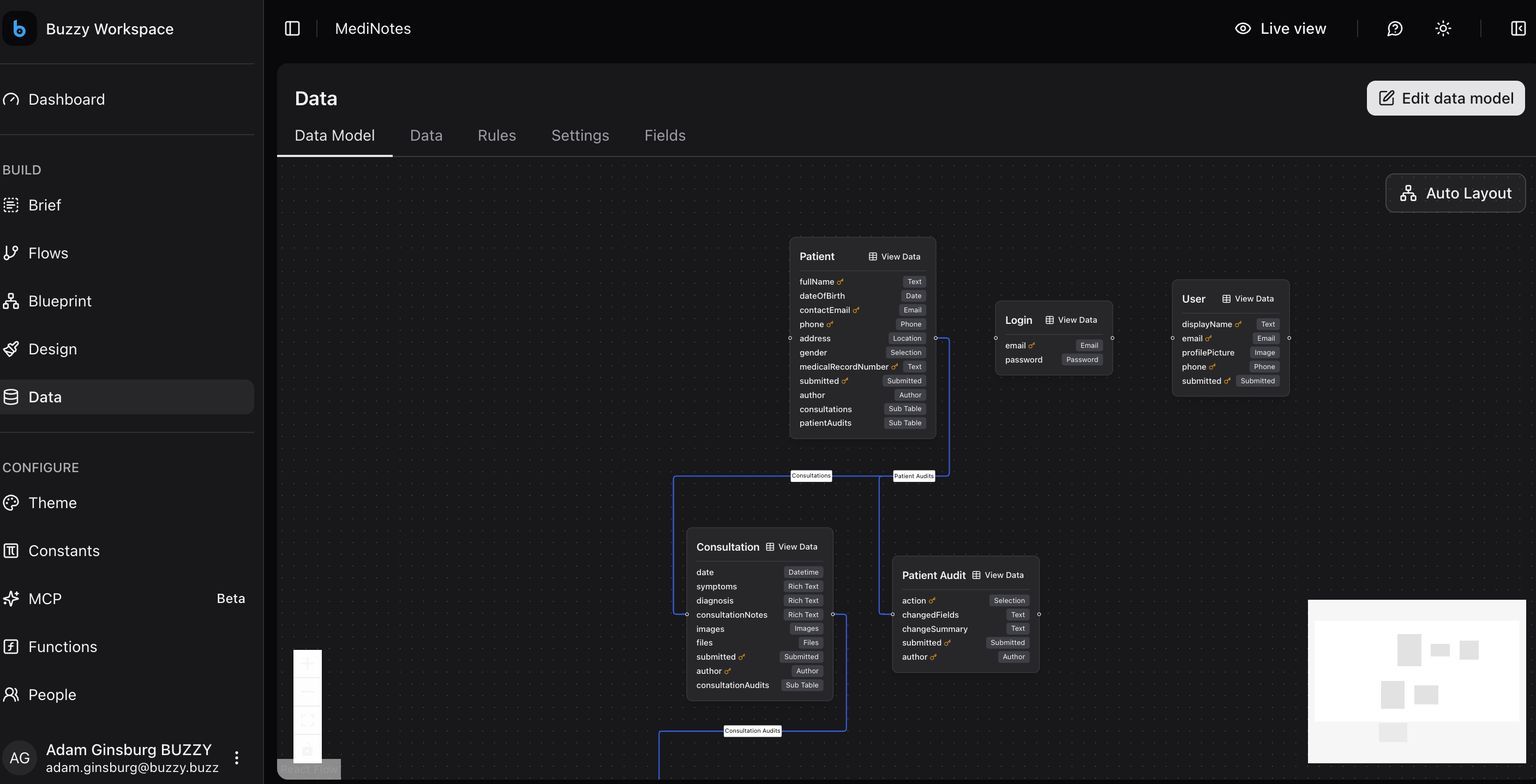
<figure><img src="/files/HHL7sKtDSTCOcrovXBqo" alt="Data Model diagram for the MediNotes sample app"><figcaption><p>Use Data Model to understand table relationships, then use Fields to review access and Private Data settings for a selected datatable.</p></figcaption></figure>

<figure><img src="/files/3mhfRKcpsS1V6Fhjr02C" alt="Fields tab showing field type, view policy, edit policy, Private Data classification, and purpose for a sample MediNotes app"><figcaption><p>The Fields tab summarizes field type, view access, edit access, Private Data classification, and purpose.</p></figcaption></figure>

Use the Fields tab to check:

* which datatable a field belongs to
* the field type, such as Text, Email, Image, Password, or Rich Text
* who can view the field
* who can edit the field
* whether the field is Not Private Data, Basic Private Data, or Sensitive Private Data
* whether Sensitive Private Data has a clear purpose
* whether encryption at rest applies

Select the datatable first, then review the fields for that table. This keeps the view focused when an app has multiple datatables such as Patient Note, User, Login, Attachments, or Audit records.

The Fields tab is a review and navigation surface. Use **Edit data model** or the field edit modal when you need to change a field's type, access, Private Data classification, purpose, or validation.

## Field View and Field Edit

Private Data still starts with row access. A user must be allowed to see the row before field-level access is considered.

After row access is granted:

* **Field view** decides whether the field can be seen.
* **Field edit** decides whether the field can be changed.
* Viewer-based policies can require selecting teams or organizations.
* Edit must be the same as view or more restrictive.

Use Field view to narrow access to sensitive fields inside otherwise visible rows. Use Field edit to prevent users from changing protected values.

### Field Access Settings

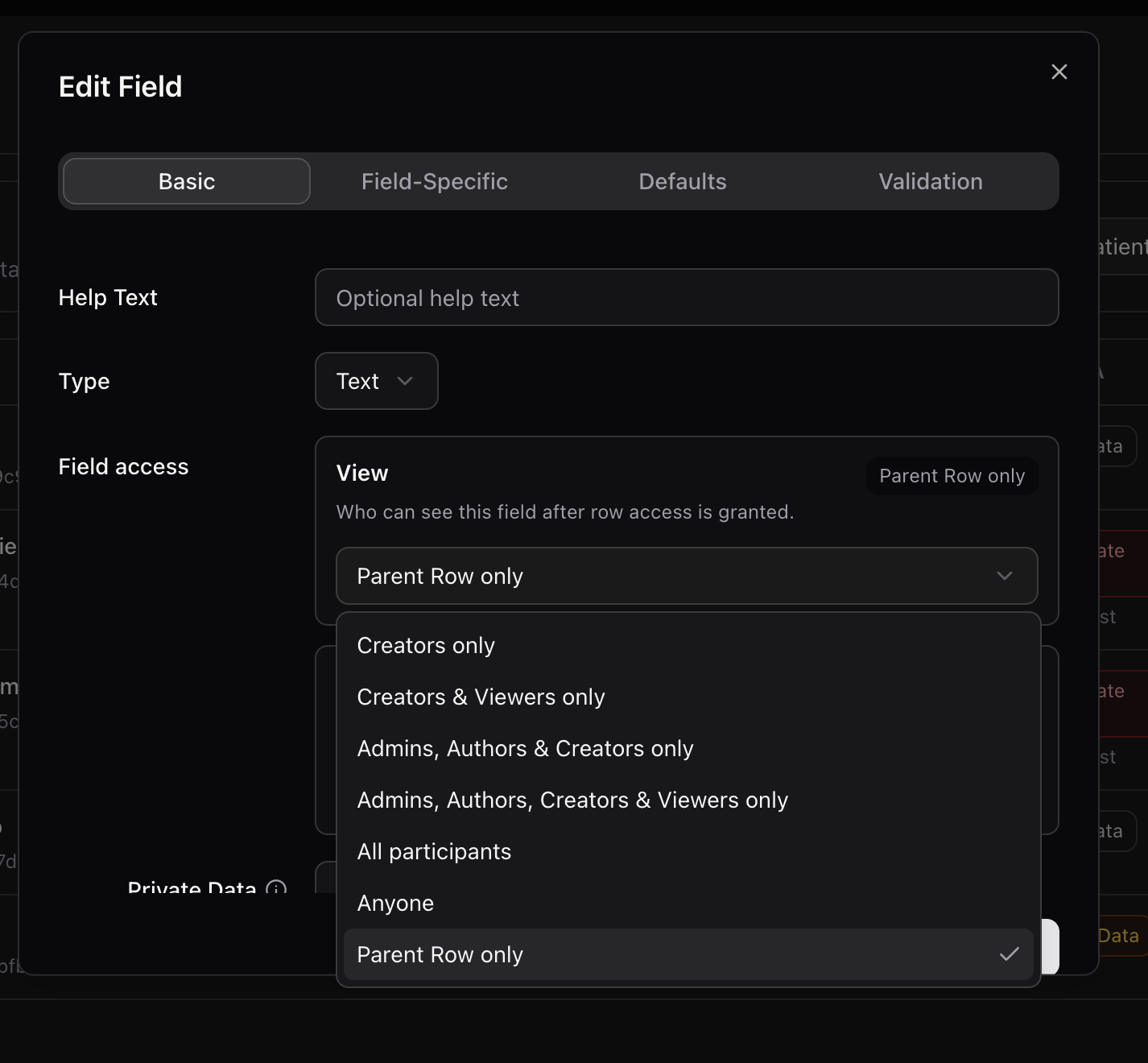
The field editor shows a **Field access** section with separate **View** and **Edit** cards.

<figure><img src="/files/qYtAgYmkbCm0uGjyDF7o" alt="Field view dropdown showing access policy options"><figcaption><p>Field view controls who can see the field after row access has already been granted.</p></figcaption></figure>

**View** answers: "Who can see this field after row access is granted?"

**Edit** answers: "Who can change this field after row access is granted?"

Common options include:

| Option                                       | Meaning                                                                                                                   | Common use                                                    |
| -------------------------------------------- | ------------------------------------------------------------------------------------------------------------------------- | ------------------------------------------------------------- |
| **Creators only**                            | Only the row creator can see or edit the field.                                                                           | Personal draft fields, submitter-owned records                |
| **Creators & Viewers only**                  | The row creator and users assigned through the row's Viewers policy can access the field.                                 | Case records assigned to named reviewers                      |
| **Admins, Authors & Creators only**          | Workspace builders and the row creator can access the field.                                                              | Internal build/admin fields plus submitter visibility         |
| **Admins, Authors, Creators & Viewers only** | Workspace builders, the creator, and selected viewer groups can access the field.                                         | Review workflows with Legal, Compliance, HR, or Finance teams |
| **All participants**                         | Any authenticated app participant who can see the row can access the field.                                               | Low-risk operational fields in private apps                   |
| **Anyone**                                   | Any caller who can see the row can access the field, including anonymous users if the row policy allows anonymous access. | Public fields only                                            |
| **Parent Row only**                          | Access follows the parent row.                                                                                            | Sub-table fields that should inherit parent row access        |

Field **Edit** must be the same as **View** or more restrictive. For example, if View is **Admins, Authors & Creators only**, Edit cannot be **Anyone** because that would let users change a field they may not be allowed to see.

### Viewer Teams and Organizations

Some View or Edit options include **Viewers**. When you choose a viewer-related option, Buzzy shows a **Viewer teams / organizations** selector.

<figure><img src="/files/RB3WqbGr4SYCvoPSTn1D" alt="Viewer teams and organizations selector for a viewer-related field access policy"><figcaption><p>Viewer-related field policies require selecting the teams or organizations that should be allowed through that field policy.</p></figcaption></figure>

Use that selector to choose the teams or organizations that should be allowed through that field policy. If you do not select a team or organization, the viewer-related policy does not have a concrete group to apply.
Example setup:

1. Create a team called **Legal Reviewers**.
2. Add legal staff to that team.
3. Set a sensitive **Legal notes** field to **Admins, Authors, Creators & Viewers only**.
4. Select **Legal Reviewers** in **Viewer teams / organizations**.
5. Set **Field edit** to the same policy or a stricter Legal-only policy.

The user must still be allowed to see the row. The team or organization selection does not bypass row access; it narrows field access after row access has been granted.

### Edit Cannot Be Broader Than View

Buzzy warns builders when **Field edit** is broader than **Field view**.

<figure><img src="/files/1ltTOJDX3ZgLnpO6rsep" alt="Field edit warning when edit access is broader than view access"><figcaption><p>Edit access must be the same as view access or more restrictive.</p></figcaption></figure>

This prevents confusing policies such as "Admins, Authors & Creators can view, but Anyone can edit." If someone cannot see a field, they should not be able to change it.

### Workflow Scenarios

| Scenario                                                      | Recommended field access pattern                                                                                                         |
| ------------------------------------------------------------- | ---------------------------------------------------------------------------------------------------------------------------------------- |
| Submitter can create a case but cannot read internal notes    | Row access includes the submitter; internal fields use Field view for reviewers/admins only                                              |
| Legal team reviews legal-risk fields                          | Create a Legal Reviewers team, then use a viewer-related Field view policy and select that team                                          |
| Compliance team handles evidence and findings                 | Create a Compliance Reviewers team, mark findings/evidence as Sensitive Private Data, and select the Compliance team for Field view/edit |
| Manager approves outcome without seeing raw sensitive details | Use non-private status/outcome fields for managers; keep raw notes as Sensitive Private Data for reviewers                               |
| External partner sees only their assigned records             | Use organizations or Team Viewers for row access, then Field view to hide internal-only fields                                           |

## Secure Workflow Patterns

Field-level controls are most powerful when combined with viewer-related row permissions.

For example, a builder can create teams or organizations such as:

* Legal Reviewers
* Compliance Reviewers
* Clinical Reviewers
* HR Case Managers
* Finance Approvers

Then the app can use row **Viewers** or **Team Viewers** to decide which records each group can open, and **Field view** or **Field edit** to decide which fields that group can see or change after row access has been granted.

This supports workflows where:

* submitters can create a row but cannot see internal review notes
* Legal Reviewers can see and edit legal fields only
* Compliance Reviewers can see and edit compliance fields only
* managers can see final decision fields without seeing every sensitive detail
* admins can inspect configuration and audit evidence

See [Secure and Compliant Workflow App](/the-ultimate-guide-for-vibe-coding-an-application-with-ai/building-examples/secure-compliance-workflow.md) for a complete example.

## Runtime Behavior

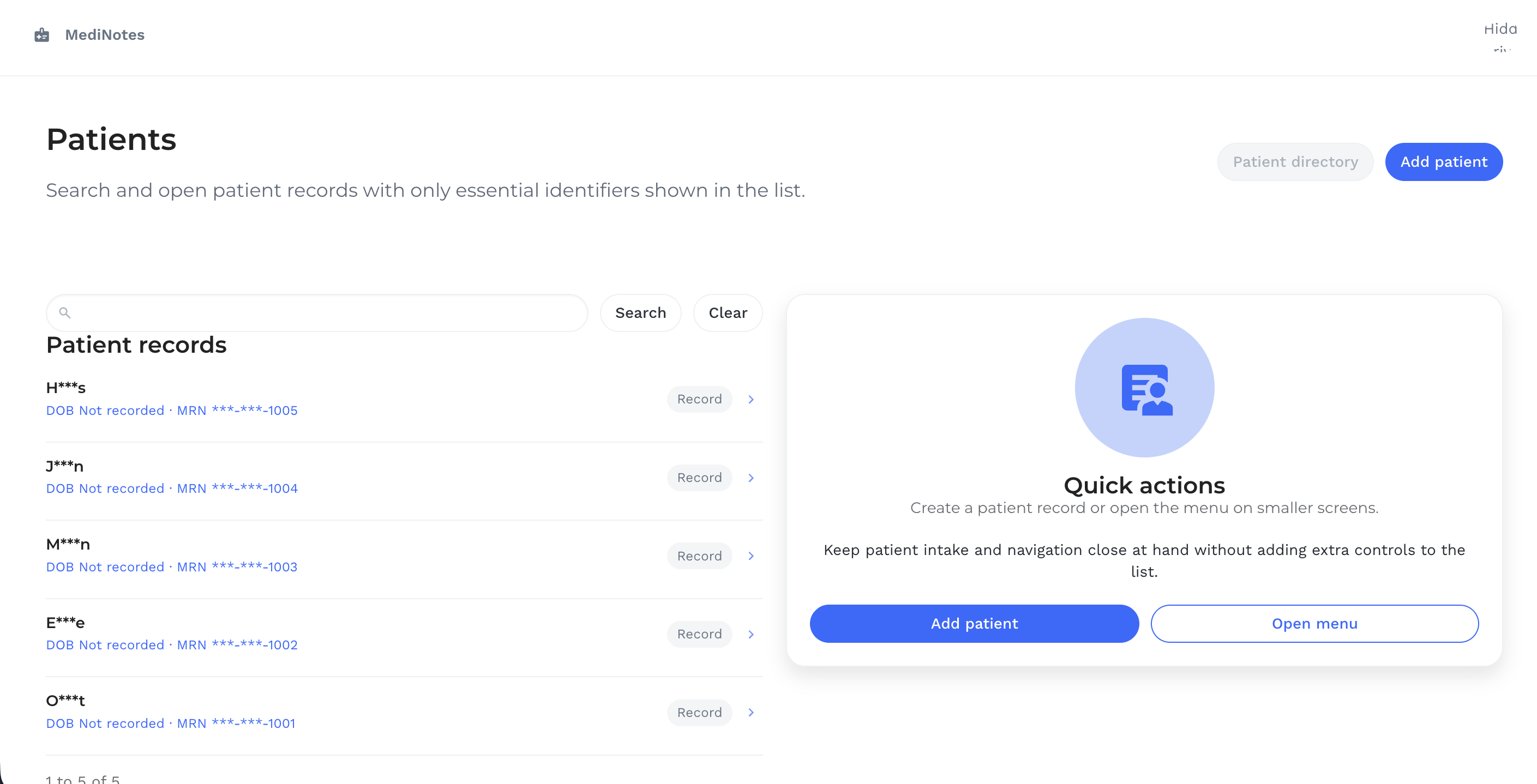
Private Data is shaped by the server before the app receives it.

<figure><img src="/files/VqPBcfBgGvUFao3fijfR" alt="Runtime patient list showing masked identifiers"><figcaption><p>Runtime lists can show minimized identifiers while keeping raw Private Data hidden.</p></figcaption></figure>

* Not Private Data renders normally.
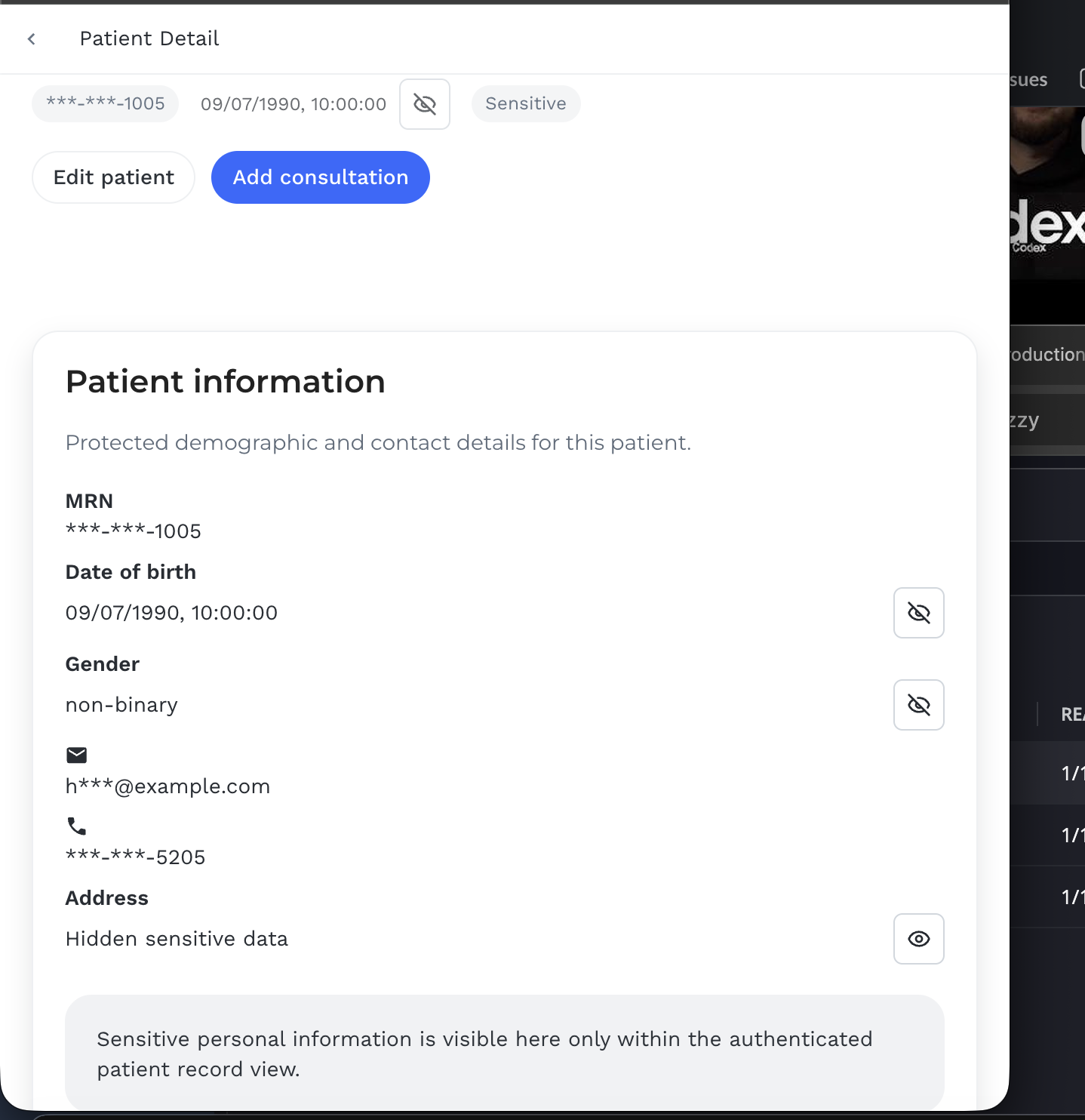
* Basic Private Data is masked or redacted.
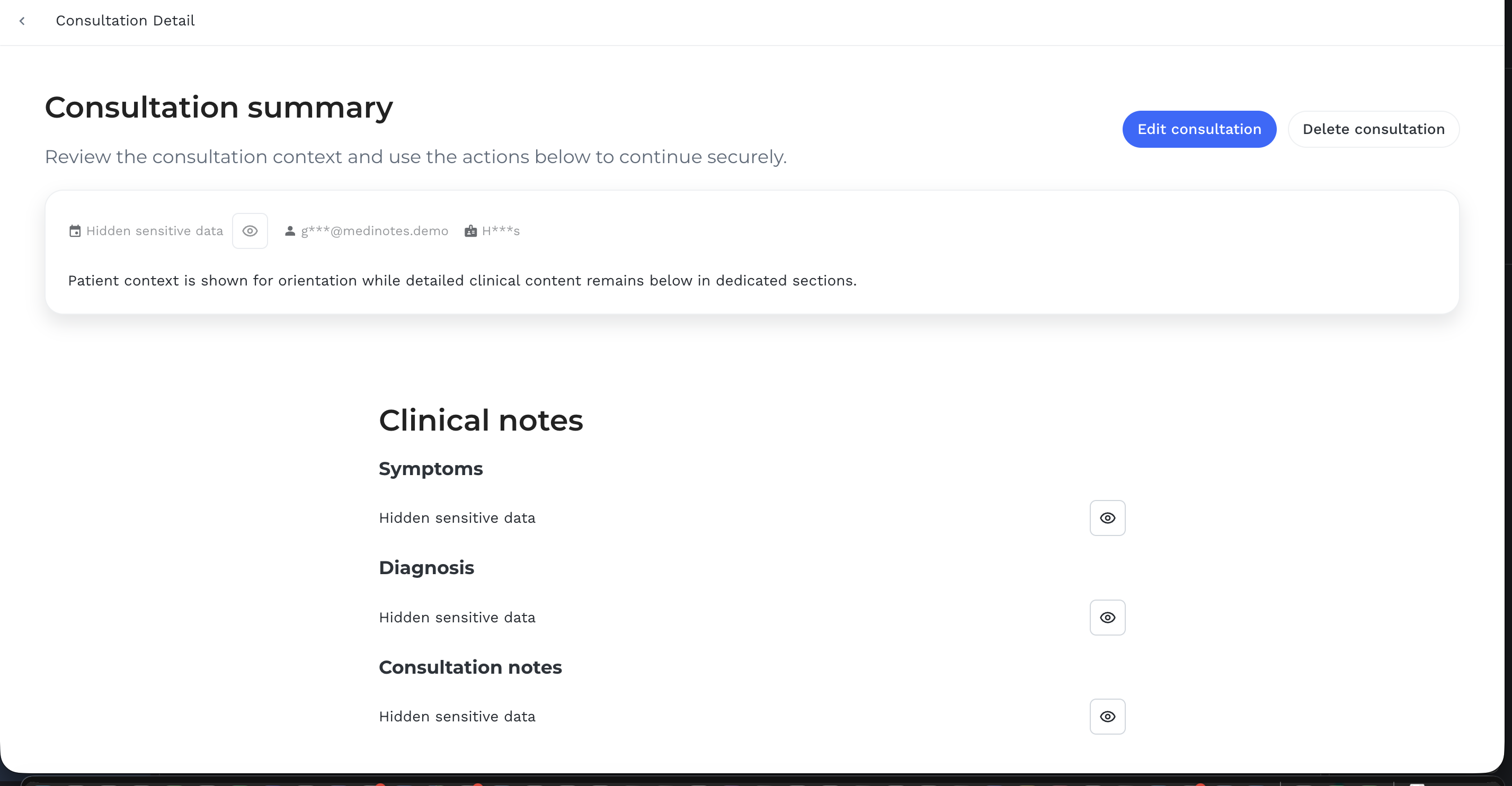
* Sensitive Private Data shows a hidden placeholder and reveal control when the user has permission.
* Denied users do not receive raw sensitive values.
* Revealed values can be hidden again in the UI.

The reveal action returns only the requested field value, not the full row.

<figure><img src="/files/uWuGAWp25mJzi7Jfsexx" alt="Patient detail screen showing masked basic fields and hidden sensitive fields with reveal controls"><figcaption><p>Basic Private Data can be masked, while Sensitive Private Data stays hidden until an authorized reveal.</p></figcaption></figure>

<figure><img src="/files/V8Tu7AlHAhekOKie2FMQ" alt="Consultation detail showing hidden sensitive clinical fields with reveal buttons"><figcaption><p>Sensitive clinical fields render as hidden placeholders with reveal controls for authorized users.</p></figcaption></figure>

## Audit Trail

Sensitive Private Data reveal attempts are audited. The audit trail records metadata such as the user, row, field, classification, purpose, outcome, and time. It does not store the revealed value.

To view audit entries for a row:

1. Go to **Workspace > Data**.
2. Open a row.
3. Expand **Metadata**.
4. Select **Load audit trail**.

Audit entries are fetched by server method. They are not published to the client automatically.

Admins can use the audit trail during access reviews, incident investigations, and compliance evidence collection. The audit trail helps answer questions such as:

* who attempted to reveal a sensitive value
* which row and field were involved
* whether the reveal succeeded or failed
* what purpose was supplied
* when the event happened

Audit retention is controlled at deployment level. See [Buzzy Settings](/advanced-deployment-settings/installation/buzzy-settings.md#private-data-audit-retention).

## Encryption and Repair

Sensitive Private Data is encrypted at rest. If you change Private Data classification or encryption settings after rows already exist, use datatable repair to align stored values with the current field definitions.

Repair is useful when:

* a field is changed from Not Private Data to Sensitive Private Data
* a field is changed from Sensitive Private Data back to Not Private Data
* encryption settings change
* existing sort/search metadata needs to be removed for Private Data fields

## Search, Sort, and AI Context

Encrypted Private Data should not be used directly for search, sort, or vector search.

Recommended pattern:

* Store sensitive raw values in Private Data fields.
* Store safe operational metadata in non-private fields for filters and reports.
* Use dates, statuses, categories, owners, or non-sensitive derived values for sorting.

Buzzy also shapes Private Data before it is used in AI prompt contexts, generated previews, exports, REST API responses, and MCP tools.

## Files and Images

Private Data can be applied to image and file fields.

When access is denied:

* file names and metadata that could expose the file are hidden
* signed URLs are not returned
* image previews and links are replaced with a hidden placeholder

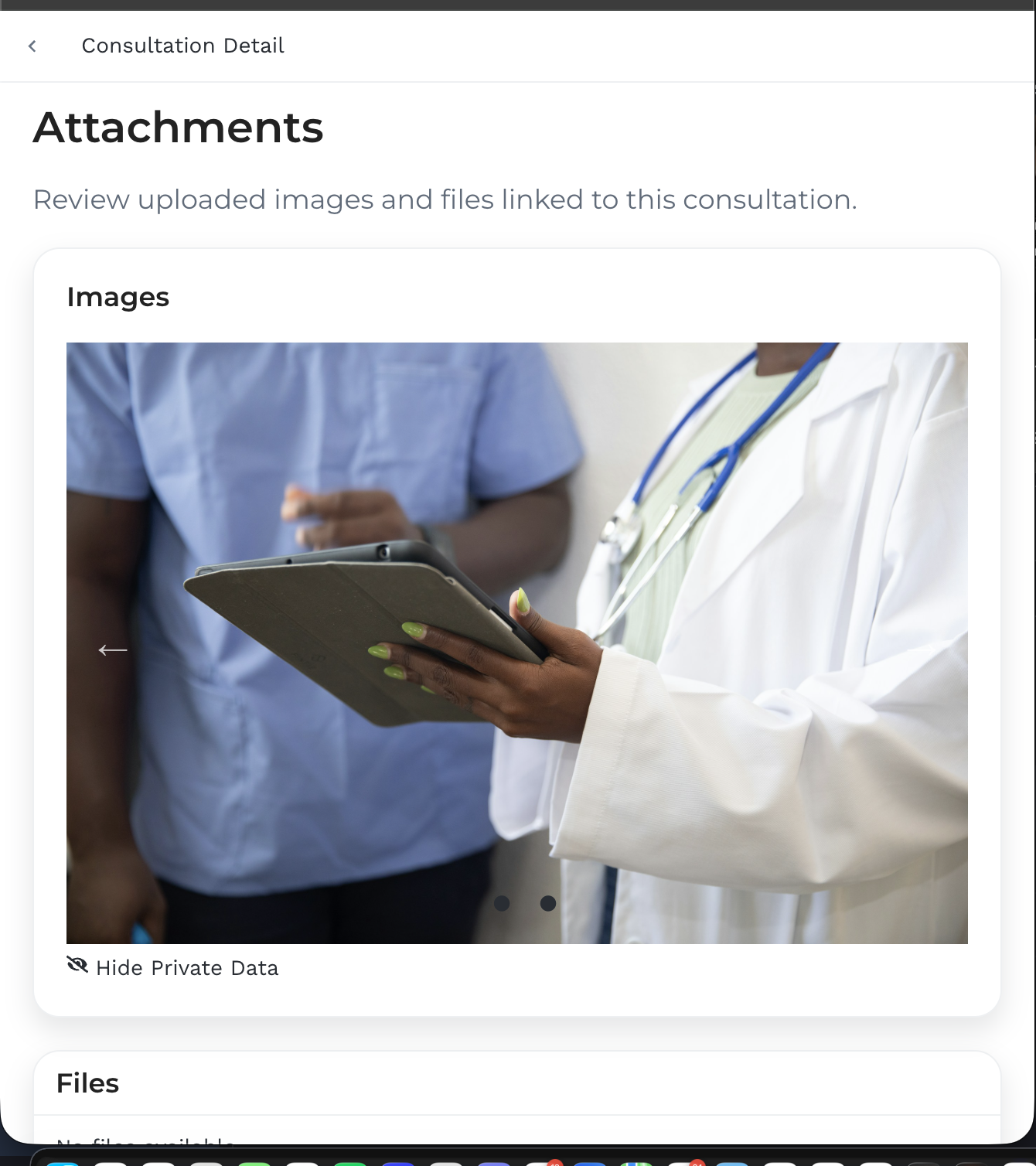
When access is allowed, Buzzy can return the normal attachment metadata and signed URLs required to display the file or image.

<figure><img src="/files/LREdOI39qoRkU2FKv8tK" alt="Attachment screen showing revealed Private Data images and a hide control"><figcaption><p>Authorized users can reveal Private Data image fields; hiding again removes the visible file content from the UI.</p></figcaption></figure>

V1 gates attachment metadata and signed URLs. File bytes are not separately encrypted by this feature, so deployment storage configuration and signed URL expiry remain important.

## Examples

### Healthcare Notes

| Field             | Classification         | Field view                  |
| ----------------- | ---------------------- | --------------------------- |
| Patient name      | Basic Private Data     | Care team                   |
| Date of birth     | Sensitive Private Data | Care team                   |
| Consultation note | Sensitive Private Data | Clinicians only             |
| Created date      | Not Private Data       | Anyone who can view the row |

### Customer Records

| Field              | Classification         | Field view    |
| ------------------ | ---------------------- | ------------- |
| Customer email     | Basic Private Data     | Account team  |
| Customer phone     | Basic Private Data     | Account team  |
| Account status     | Not Private Data       | Support users |
| Internal risk note | Sensitive Private Data | Managers only |

### Employee Records

| Field            | Classification         | Field view       |
| ---------------- | ---------------------- | ---------------- |
| Employee name    | Basic Private Data     | HR and manager   |
| Salary           | Sensitive Private Data | HR only          |
| Department       | Not Private Data       | App participants |
| Performance note | Sensitive Private Data | HR and manager   |

### Private Images and Files

Use Private Data for fields such as:

* clinical images
* identity documents
* signed agreements
* financial statements
* confidential attachments

Test file/image fields with both allowed and denied users, and verify REST API and MCP responses do not expose denied attachment URLs.

## Checklist

* [ ] The field classification matches the sensitivity of the data.
* [ ] Field view is no broader than required.
* [ ] Field edit is the same as view or more restrictive.
* [ ] Sensitive fields have a clear purpose.
* [ ] Search and sort use non-private metadata fields.
* [ ] File/image fields are tested with denied users.
* [ ] REST API and MCP access are tested.
* [ ] Datatable repair is run after changing classification or encryption settings.
* [ ] Audit trail retention is configured for the deployment.


---

# Agent Instructions
This documentation is published with GitBook. GitBook is the documentation platform designed so that both humans and AI agents can read, navigate, and reason over technical content effectively. Learn more at gitbook.com.

## Querying This Documentation
If you need additional information that is not directly available in this page, you can query the documentation dynamically by asking a question.

Perform an HTTP GET request on the current page URL with the `ask` query parameter:

```
GET https://docs.buzzy.buzz/the-building-blocks/datatables-fields-and-data/private-data.md?ask=<question>
```

The question should be specific, self-contained, and written in natural language.
The response will contain a direct answer to the question and relevant excerpts and sources from the documentation.

Use this mechanism when the answer is not explicitly present in the current page, you need clarification or additional context, or you want to retrieve related documentation sections.